Guide
ChatGPT setup guide for small business owners
This guide gets you from no account to a ChatGPT that knows your business. Every step works on the free plan unless it says otherwise.
Before you start
What can ChatGPT do for a small business?
ChatGPT reads what you give it and makes judgment calls. Paste in a customer's message and it drafts a reply that fits, or describe a job out loud and it writes up the quote. It handles the kind of work that doesn't fit a template because every situation is slightly different.
Think of it as a new team member who learns how you work.
What memory is
Memory lets ChatGPT carry information about you between chats, such as what your business does and how you like your emails written. It saves this to your account, so there is nothing for you to file or organize.
Memory only keeps what it decides to save, so give it a nudge. When something matters for future conversations, type "remember that" and check the summary it gives you back.
Is my data safe?
ChatGPT only reaches the apps you choose to connect, and you can finish this guide without connecting any. On the free plan and on personal paid plans, your chats can be used to train the model unless you turn that off. Step 2 shows you how.
Part 1: Get set up
Steps 1 and 2 are all you need. Steps 3 and 4 are optional, and the prompts in Part 3 work without them.
Create a ChatGPT account
Go to chatgpt.com and create an account with the email you use for your business. If you already have an account, use that one.
Click Sign up for free. Then choose Continue with Google, or type your email address and click Continue. If the buttons are worded a little differently on your screen, pick the one that signs you up with your email.
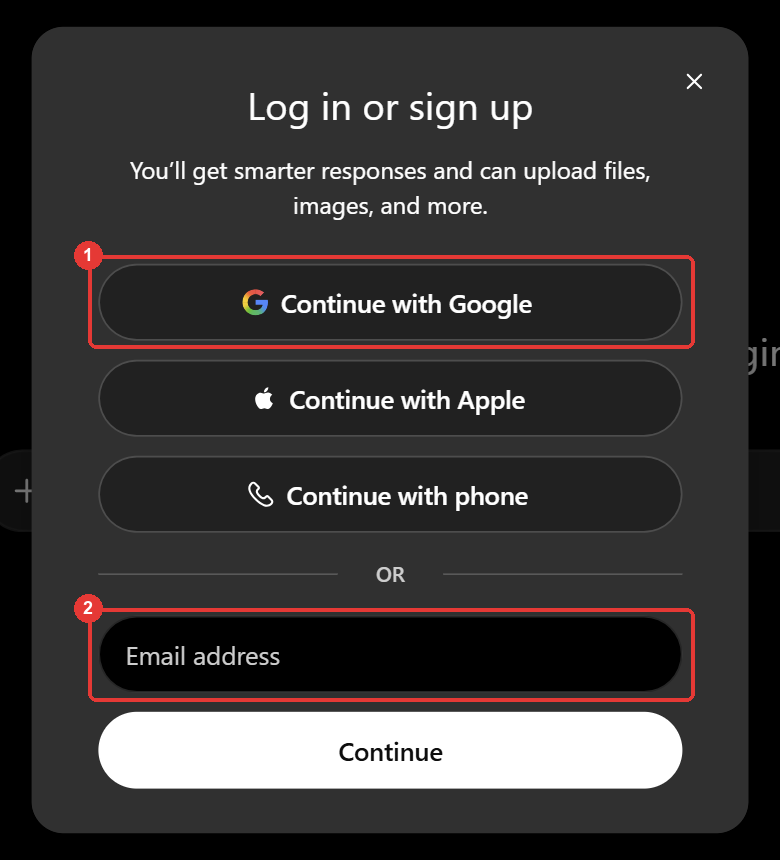
Start on the free plan. You do not need to pay to follow this guide. If ChatGPT tells you that you hit a limit, wait for the reset it shows you. Paid plans raise those limits. Prices and plan names change, so check chatgpt.com/pricing before you pay for anything, and skip the most expensive plans for now.
Turn on memory, turn off training
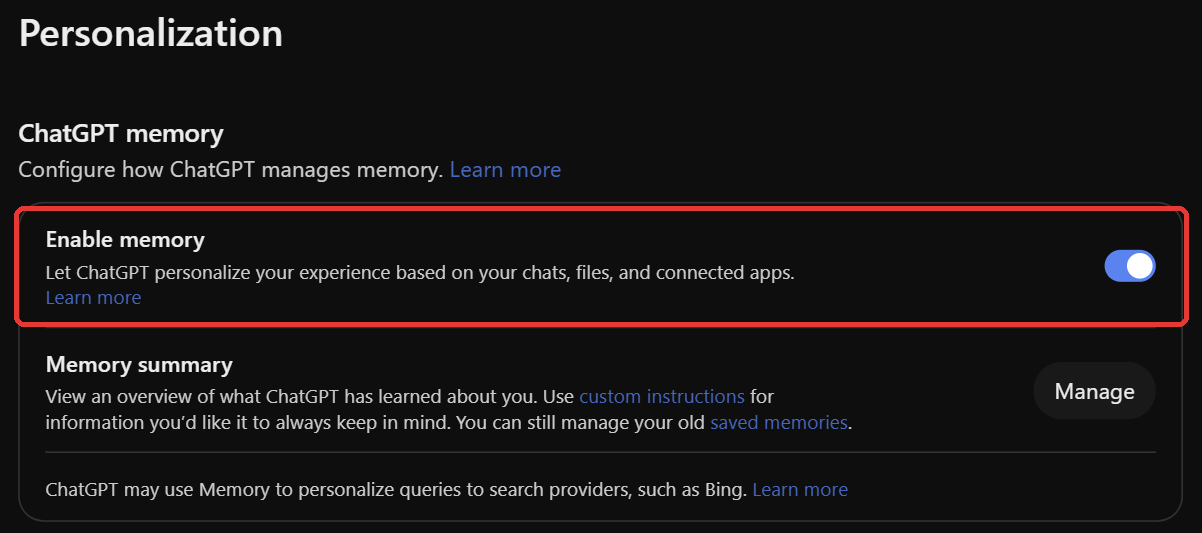
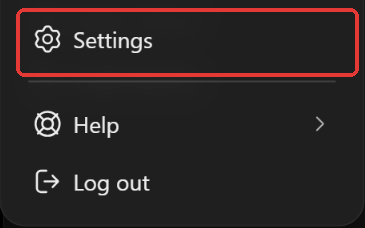
Memory. On chatgpt.com, click your profile circle (your initials or photo, usually in the bottom left corner), then Settings, then Personalization. Find the memory section and make sure its switch is on. In the picture below it is called Enable memory. The free plan remembers less than the paid plans do, and it is still worth turning on.
Training. Stay in Settings and open Data controls. Find the switch named Improve the model for everyone and turn it off. From then on your new chats are kept out of the material used to train the model.
Download the desktop app
The desktop app is the same ChatGPT in its own window. The website works for everything in this guide, so skip this step if you are happy in your browser.
Use the download button for your computer near the top of the page. Open the file it downloads, follow the steps it shows, and sign in with the same account you made in step 1.
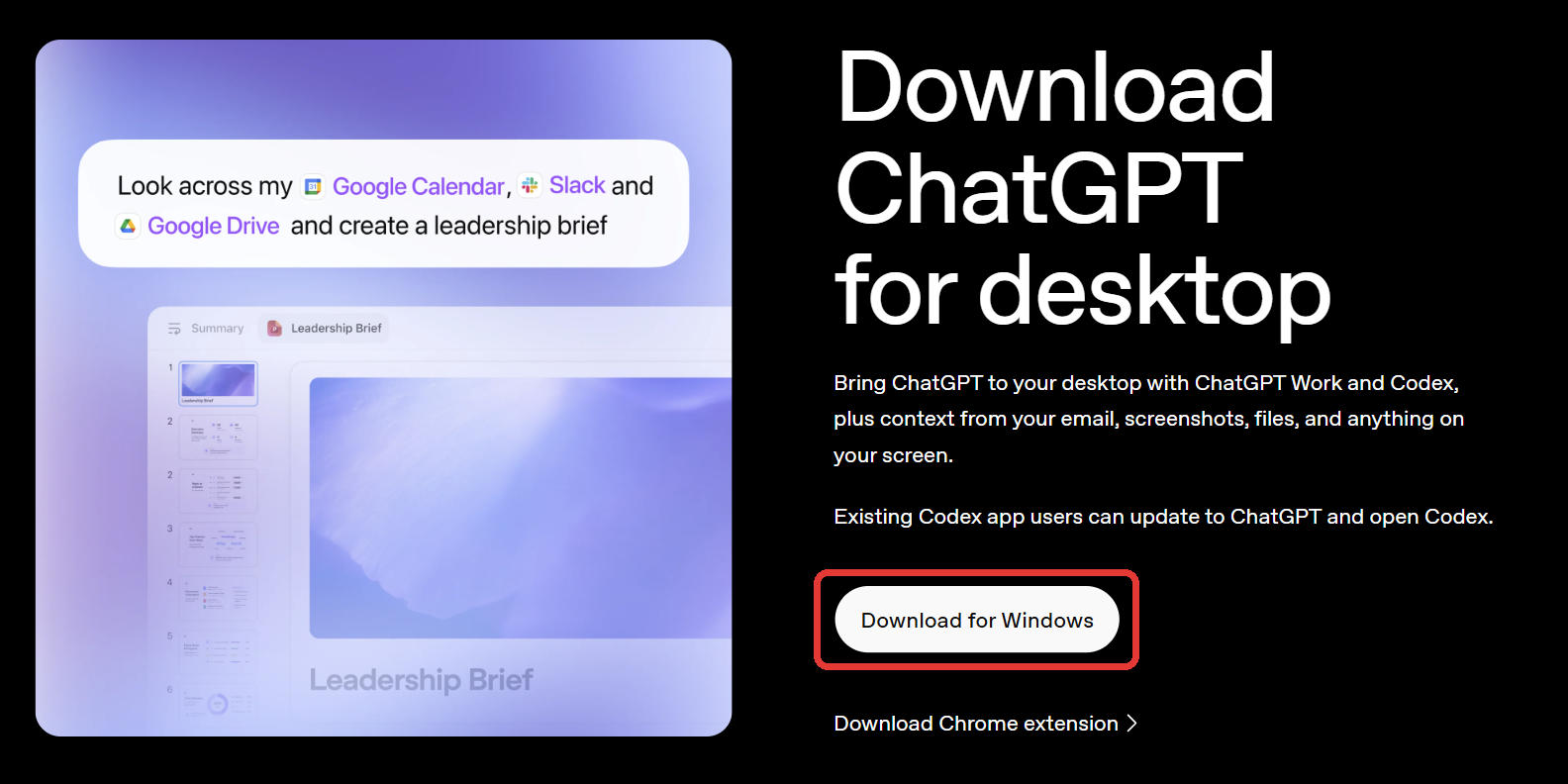
You may see a few permission popups during install. Allow the microphone if you want to talk instead of type. You can say no to the others and change them later in Settings.
If the menu at the top of the app says Codex, switch it to ChatGPT and click New chat. Codex is a tool for programmers. You do not need it.
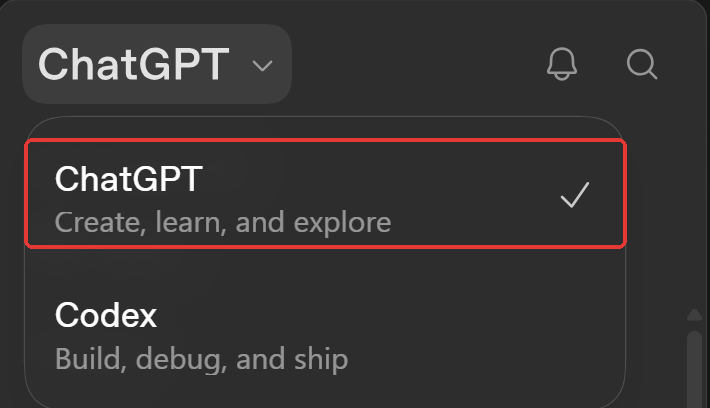
A new chat in the app has a Chat / Work switch above the message box. Chat is the familiar conversation and Work is for longer tasks, so leave it on Chat. One more thing you can ignore: the app's Settings may show Codex memory under Personalization, which is a separate setting for coding.
Connect your email
ChatGPT calls a connection to another app, like Gmail or Outlook, a plugin. With your email connected, ChatGPT can read messages when you ask it to. You can remove the connection later from the same place you added it.
- Look for Plugins. ChatGPT's help pages put it in the left sidebar. On some versions it sits inside Settings, under Integrations.
- In the search box, type the name of your email app (Gmail or Outlook Email) and open it.
- Install it. The button may be a plus sign, or it may read Install plugin.
- When ChatGPT asks you to connect, sign in to your email and read the permissions before you approve them.
Your calendar and your files connect the same way. OneDrive is listed under the name SharePoint, and it works for work or school OneDrive only. Personal OneDrive is not supported.
Test it: click New chat in the left sidebar and type @. A list appears. Pick your email app from it, then type "summarize the last five emails in my inbox." If you get a summary, you are connected. If it asks you to sign in again, follow the prompt, because the first connection sometimes takes two tries.

If your email is run by a company IT team, they may have to approve this. If you do not see Plugins anywhere, skip this step. Some accounts do not have it yet, and the prompts in Part 3 work without it.
Setup complete. Everything below is about your first real conversations.
Part 2: Know your screen
Four controls are enough to get going.
The message box
In the middle of a new chat, at the bottom during a conversation
This is where you type. Click the small microphone at the right side of the box to talk instead, and ChatGPT turns what you say into text. The larger round button beside it starts a spoken back and forth conversation, which is a different thing.

The stop button
Shows in the message box while ChatGPT is writing
If ChatGPT starts doing something you didn't want, click the stop button, which is usually a small square at the right end of the message box. You won't break anything. Tell it what you wanted and it picks right back up.
The profile circle
Usually the bottom left corner
Click it and choose Settings. Memory, training and your connected apps all live there.
New chat
Left sidebar
Click New chat to start a fresh conversation. If the sidebar is hidden, open it first. Your past conversations are listed in that same sidebar, and you can drag a file into any chat to share it with ChatGPT.
Part 3: Talk to it
Prompt 1 is the one to do today. Come back for prompts 2 and 3 when you have more time. ChatGPT will ask follow-up questions, so answer naturally and let it guide the conversation.
Tip: click the small microphone in the message box and talk instead of typing. Ramble. The more you say about how you work, the better the output, and ChatGPT handles the ums and the trailing off.
Prompt 1: Teach it who you are
Copy and paste this into a new chat
I want you to know who I am every time we talk. Ask me about my business, my customers, what I do in a normal week and how I like to write. Ask one question at a time. When we are done, give me a short summary and save it to memory.
If it does not offer to save at the end, type "save all of that to memory."
Prompt 2: Walk it through one process, start to finish
This gives ChatGPT one of your real processes to help with. Start with this, then keep going out loud
I'm going to walk you through exactly what I do for one recurring process, from the first request to the finished work. Here is how it goes: [Talk through it: what starts the process, where the information comes from, which tools you open, the decisions you make, who checks the work, and how you know it is finished] When I'm done, ask me follow-up questions until you could write the step-by-step yourself. Then write it out as a numbered checklist and save it to memory.
Talk, do not type. Ramble through it the way you would explain it to a new hire.
Prompt 3: Have a real conversation
The more ChatGPT knows about your week, the more useful it gets. Start with this, then keep talking
I want to tell you about what my typical week looks like so you can help me figure out where AI could save me time. Here's what I usually spend my time on: [Talk about things like: quotes and invoices you write, messages you answer over and over, scheduling, things you copy and paste between tools, follow-ups you track by hand, anything repetitive or tedious] After I finish, ask me 5-10 follow-up questions to get a more specific picture of how I work, the tools I use, where I spend the most time, and what I wish I could hand off.
There's no wrong answer. Put any of this in your own words if that feels more natural.
Before you close a chat: if something important came up, like a step in your process or a phrase you always use, tell ChatGPT "remember that." Memory only keeps what it decides to save, and a nudge helps it land.
If something goes wrong
These are the most common hiccups.
"I don't see Plugins"
If you are in the desktop app, update it. Look for Check for Updates in the Help menu at the top of the app. If Plugins is still missing, skip that step. The prompts work without it.
"My email won't connect" or "needs admin approval"
Your company's IT admin has to approve it. Skip the email step. Prompt 1 does not need your email.
"It forgot what I told it"
Check that the memory switch is on (step 2). Then tell it directly: "remember that I ..." and ask it to confirm what it saved.
"It says I hit my usage limit"
Free and Plus plans have usage limits. ChatGPT shows you when yours resets. Come back then.
"It is doing something I didn't ask for"
Click the stop button in the message box, then type what you wanted. You won't break anything.
Modern Agentic Solutions
Carlos Ayon, Modern Agentic Solutions. Checked against ChatGPT in November 2026. Menus change; if a label differs, look for the closest match.