Setup guide
Claude setup guide for small business owners
This guide gets Claude running on your computer and your phone, connects it to your email and calendar, and walks you through a first practice task. You can stop after any step and come back later.
What is free and what needs a paid plan
Steps 1 through 4 work on Claude's Free plan. Steps 5, 6 and 7 need a paid plan, and the Pro plan at $20 a month covers all three.
Anthropic, the company that makes Claude, changes its menus often. Where a button on your screen has a different name from the one printed here, look for the closest match, or ask Claude itself where the setting moved.
Create your account and set your privacy choice
Everything else in this guide signs in with this one account, so start here.
- Go to claude.ai in your web browser and create an account with your Google account or your email address. You must be at least 18.
- Stay on the Free plan for now. You can do Steps 1 through 4 without paying, and you can upgrade later from inside the app.
- Select your name in the corner of the screen, then Settings, then Privacy.
- Find the switch named Help improve our AI models and decide whether to leave it on. When it's on, Anthropic can use your chats to train future models, and that can include text Claude pulls in from your email or files once you connect them in Step 4. When it's off, new chats stay out of training.

About the plans
- Free: $0. Chat on the web, the desktop app and the phone app, and connect your apps.
- Pro: $20 a month when you pay monthly, or $200 for a year up front, which works out to $17 a month. Pro adds Claude in Chrome, the Microsoft Office add-ins and Cowork, with more usage than Free.
- Anthropic also sells Max at $100 a month and Ultra at $200 a month for heavier use. Nothing in this guide needs them.
Free and Pro both have a usage limit that resets every five hours, plus a weekly limit, and Free reaches it sooner. When you hit one, Claude tells you when you can start again. Current prices are on claude.com/pricing.
Install Claude on your computer
The desktop app is where you'll talk with Claude and connect your work apps. It runs on Mac and Windows.
- Go to claude.com/download and download the version for your computer. Windows users can also get it from the Microsoft Store link on that page.
- Open the file you downloaded.
- Mac: open the .dmg file and drag Claude into your Applications folder.
- Windows: open the installer and follow the prompts.
- Open Claude and sign in with the account you made in Step 1.
Get the phone app
The phone app gives you the same Claude account away from your desk. Your chats carry over, and so do the apps you connect in Step 4.
- Open the App Store on an iPhone or Google Play on an Android phone.
- Search for Claude and pick the app made by Anthropic. iPhone users can go straight to Claude in the App Store.
- Install it, open it, and sign in with the same account.
Connect your email, calendar and files
Claude gets far more useful once it can read your inbox and your calendar. Anthropic calls these links connectors. Pick the kind of email you use and the steps below will match it.
These steps are for Google accounts.
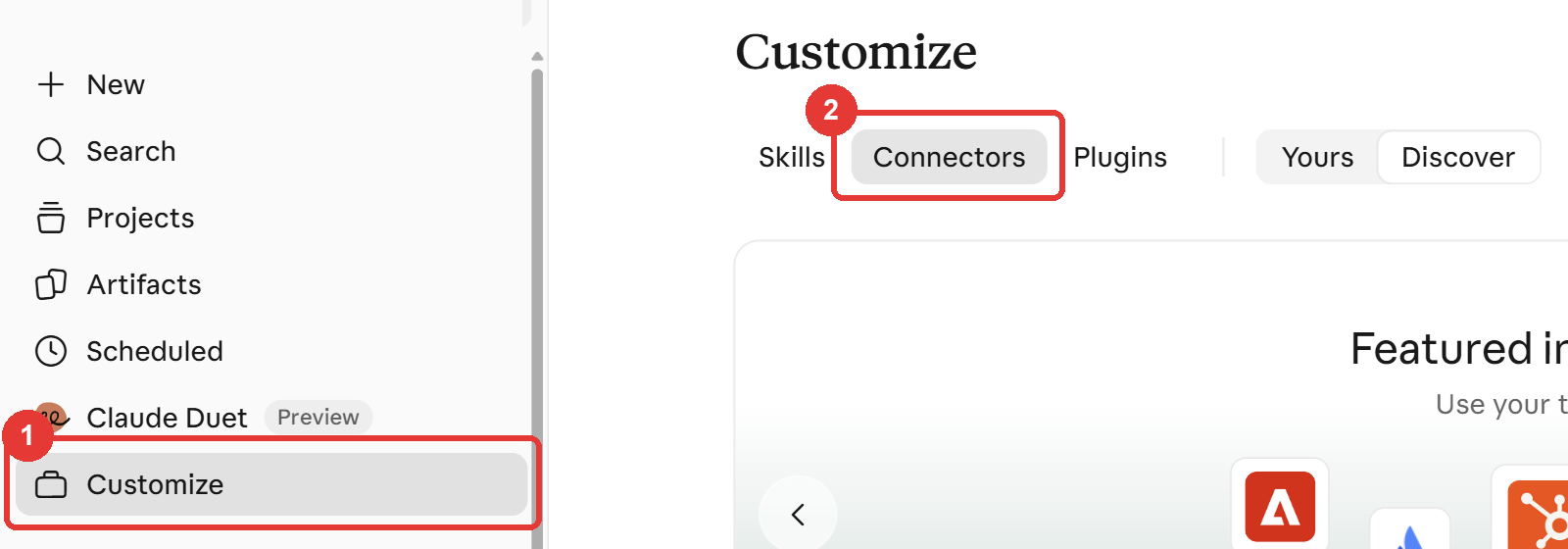
- Open the Claude desktop app, click Customize in the left sidebar, then click the Connectors tab.
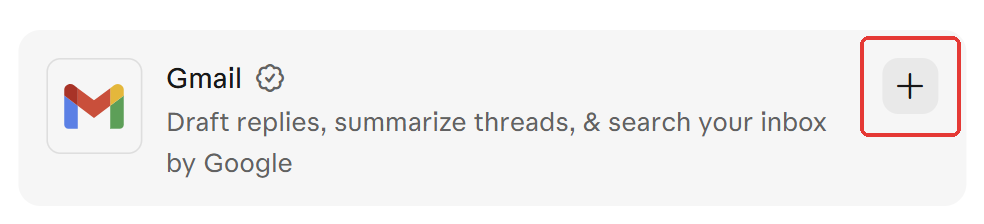
- Find Gmail and click the + on its card.
- A Google sign-in window opens. Choose your account and approve the access it asks for.
- Do the same for Google Calendar and Google Drive.
What each connection lets Claude do:
- Gmail: search and read your email, write drafts, and send or reply once you approve it.
- Google Calendar: see your schedule, find open times, and create or change events.
- Google Drive: search and read your Docs, Sheets, PDFs and other files.
Using a company Google Workspace account? If Google shows an "Access blocked" message, whoever manages your Google Workspace has to mark Claude as a trusted app first. Anthropic's Google Workspace article has the steps for them.
These steps are for Microsoft 365 and Outlook accounts.
- Open the Claude desktop app, click Customize in the left sidebar, then click the Connectors tab.
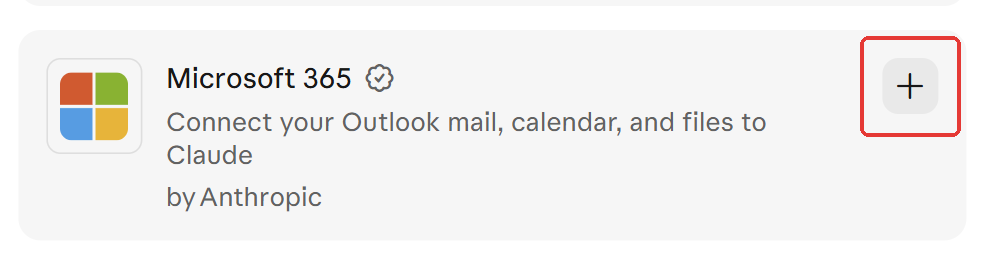
- Find Microsoft 365 and click the + on its card.
- If Claude asks which kind of account you have, choose Personal account for an Outlook.com, Hotmail, Live or MSN address, or Work or school account for an address your business pays Microsoft for.
- Sign in with that Microsoft account and approve the access it asks for.
One connection covers all of this:
- Outlook email: search and read your mail, write drafts, and send once you approve it.
- Outlook calendar: see your schedule and create or change events.
- OneDrive: search, read and update your files. A work account adds SharePoint and Teams.
Using a work account? Microsoft requires an administrator of your company's Microsoft 365 to approve Claude one time before anyone can connect. If you run your own Microsoft 365, that's you. If an IT provider runs it, send them Anthropic's Microsoft 365 article.
Can't find the list? Open any chat, click the + button in the message box, point to Connectors, and choose Manage connectors.
By default Claude asks for your approval before it sends, replies to or forwards an email, and before it shares, moves or deletes a file. Keep it that way while you're learning.
Test it
Start a new chat in the desktop app.
Claude should read your Gmail inbox and answer with a short summary.Claude should read your Outlook inbox and answer with a short summary. If it says it can't see your email, click the + button in the message box, point to Connectors, and switch your email connector on for that chat.
Once this works on your computer, the same connections show up in the phone app the next time you sign in there.
Add Claude to the Chrome browser
Claude in Chrome is a browser extension that lets Claude read the page you're on and click through websites for you. It needs Pro or a higher plan, and it works in Google Chrome only. This step is optional, so skip it if you don't use Chrome.
Make a separate Chrome profile first
Anthropic recommends giving Claude its own Chrome profile, one that isn't signed in to your bank, your health portal or anything else sensitive.
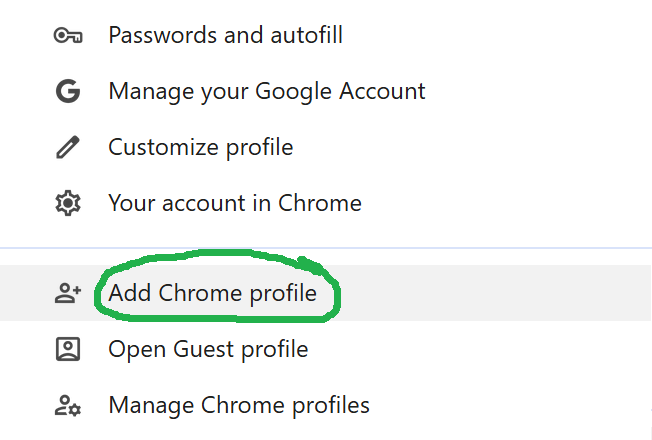
- In Chrome, click your profile picture at the top right, then Add Chrome profile.
- Name it something like "AI browsing". You don't have to sign in to a Google account for it.
- A new Chrome window opens in that profile. Use that window for the rest of this step.
Install the extension
- In the new profile, open Claude in the Chrome Web Store and click Add to Chrome.
- Sign in with your Claude account when it asks, and allow the permissions it requests.
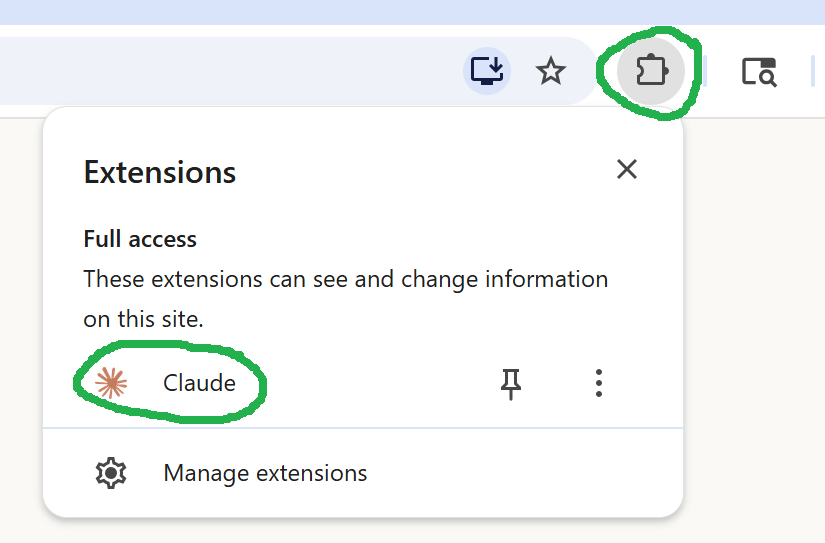
- Click the puzzle piece icon at the top right of Chrome, then the pin next to Claude, so the Claude icon stays on your toolbar.
- Click the Claude icon. A panel opens on the side of the window and stays there while you browse.
Try it
The panel starts out set to Automatically approve. Switch it to Manually approve so that Claude checks with you before each action, at least until you've watched it work a few times. Then open any public website and ask about it.
Claude tells you what it plans to do and pauses when it needs your approval. You can watch it move through the pages.
Keep it away from sensitive sites. Anthropic advises against using Claude in Chrome for bank or investment accounts, legal documents, medical information, or pages holding other people's personal details. A web page can contain hidden text written to trick an AI tool. If Claude starts doing something you didn't ask for, stop the task.
Let the desktop app use Chrome
You can also have the desktop app drive that Chrome window. In the desktop app, select your name, then Settings, then Capabilities. Under Claude in other apps, switch Claude in Chrome on. It stays off until you turn it on in a chat, and the Chrome profile with the extension has to be open for it to work.

Add Claude to Excel and PowerPoint
Claude has an add-in that opens in a side panel inside Excel and PowerPoint, where it can read the file you have open and make changes to it. You need Pro or a higher Claude plan and a Microsoft 365 subscription. The older one-time-purchase versions of Office, 2016 and 2019, aren't supported. Skip this step if you don't use Office.
- Open the Claude for Microsoft 365 listing in Microsoft's add-in store and select Get it now.
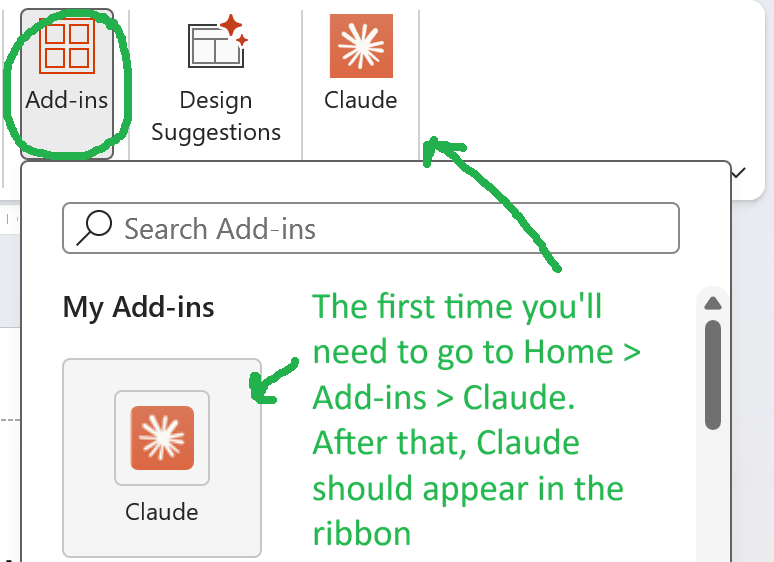
- Open Excel or PowerPoint. On Windows go to Home, then Add-ins. On a Mac go to Tools, then Add-ins. Choose Claude.
- Sign in with your Claude account. You may be asked to copy a short code from your browser back into Office.
After the first time, Claude sits on the Home ribbon.
Open a file you know well and try one of these.
Using a company Microsoft account? If the add-in doesn't show up, your Microsoft 365 administrator may need to allow it. Use the add-in only on files you trust, and review what Claude changed before you send a file to anyone.
Try a first practice task in Cowork
Cowork is the part of Claude that carries out longer, multi-step tasks and saves its work as files. It needs Pro or a higher plan. We'll practice on something low stakes: you'll teach Claude your taste in movies, save that to a file, and turn the whole routine into a shortcut you can reuse. The same pattern carries over to quotes, customer emails and weekly reports.
Open Cowork and give it a folder
- On your computer, make a new folder named "claude-workspace" inside Documents.
- Open the Claude desktop app and start a new chat.
- Look at the bottom left corner of the message box. If you see Cowork there, select it. Some accounts no longer show it because Anthropic has merged chat and Cowork into one, and on those you go straight to the next line.
- Give Claude access to the folder. The folder control sits near the message box on most versions of the app. If you can't spot it, type the request below and Claude will walk you through it.
Claude can only read and change files inside folders you connect, and it can only reach them while the desktop app is open.
Tell Claude what you like
Paste this in and swap the bracketed parts for your own.
Go back and forth for a few rounds. Tell it why you liked something, tell it when a pick is wrong, and mention who you watch with. The suggestions get closer to your taste each round.
Save what it learned
Everything Claude learned so far lives in this one conversation. Saving it to a file lets Claude pick it up again next week.
Turn it into a skill
A skill is a saved set of instructions that Claude follows whenever the task comes up again.
Claude builds the skill and hands you a skill file. Save it to your skills when Claude offers that option. If Claude says it can't create files, open Settings, then Capabilities, and turn on Create and edit files.

Test it
Start a brand new chat with the same folder connected.
Claude should read your preferences file and answer without you explaining any of it again.
What you practiced
- Talking it through. You didn't need a perfect prompt. A few rounds of back and forth did the work.
- Saving context to a file. You'll do the same with client details, project notes and price lists you want Claude to remember.
- Building a skill. A task with several steps became one request. Pick a task you repeat every week and build the next one around it.
Longer tasks like these use up your five-hour and weekly limits faster than a quick question does.
Free hands-on workshops in Houston: https://modernagenticsolutions.com/events
Book a call: https://calendly.com/carlosayon567
Disclaimer: This is an independent guide. Modern Agentic Solutions is not affiliated with Anthropic, Google or Microsoft. Product names, prices and menus were checked against Anthropic's public pages in November 2026 and can change at any time. You are responsible for how you use Claude and for what you connect to it.